 Sony recently commenced the Android 4.4.2 KitKat firmware update for select Xperia handsets. The first models to get KitKat include the Xperia Z1, Xperia Z1 Compact and Xperia Z Ultra via build number 14.3.A.0.681. Sony has said that other models in the Xperia Z range will get the update from the middle of Q2 2014.
In the following review of this firmware, we have extensively compared what new changes that the new Xperia KitKat update brings. By now, we already know that some of the most anticipated features from the Xperia Z2, such as tap to wake and 4K recording, did not make it across. However, the following review will give you a good sense of how much has changed by moving from Android Jelly Bean to KitKat.
Xperia Android 4.4.2 KitKat firmware (14.3.A.0.681) review
For reference, in the screenshots below you will see the Android 4.3 update on the Xperia Z1 compared against the Android 4.4.2 KitKat update on the Xperia Z1 Compact. We have included both ‘before and after’ pics to give some context on the changes.
PLEASE NOTE: Jelly Bean pictures are on the left and KitKat pictures are on the right. Look at the battery indicators if you get confused (the green battery icon shows Jelly Bean firmware).
About screen
This review focuses on the latest KitKat firmware update for the Xperia Z1, Xperia Z1 Compact and Xperia Z Ultra with build number 14.3.A.0.681. We are comparing it to the 14.2.A.1.136 Android 4.3 Jelly Bean firmware.
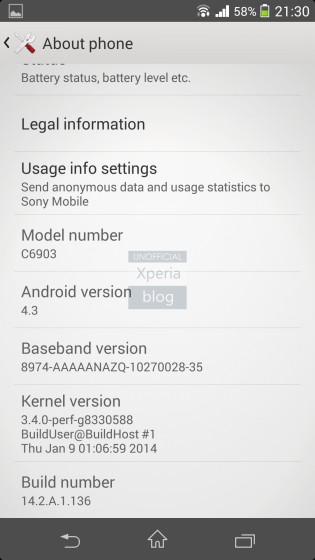
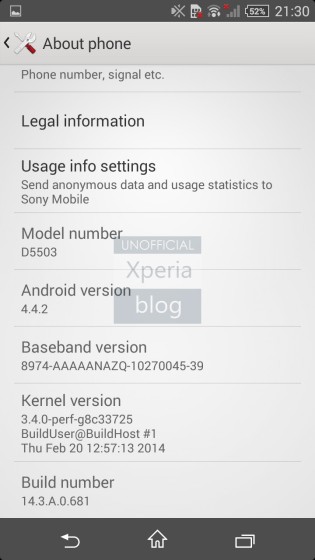
Left – Android 4.3 Jelly Bean; Right – Android 4.4.2 KitKat
Home
One of the most immediate changes you will notice is the use of the transparent elements that Android KitKat brings. This includes the status bar at the top as well as the app tray at the bottom.
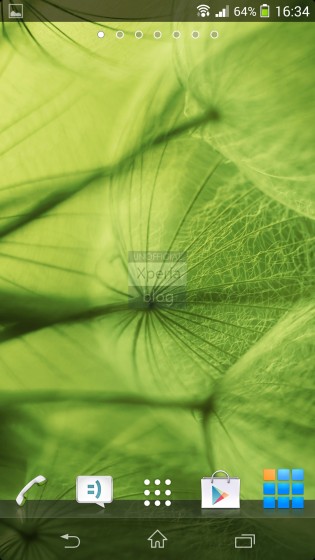
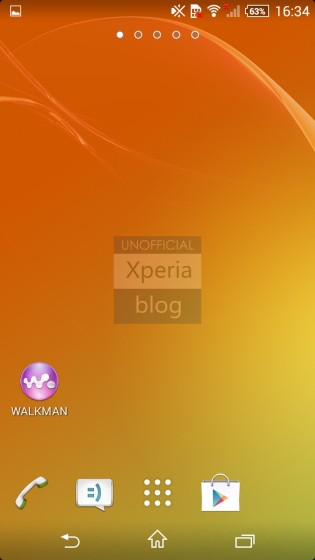
Left – Android 4.3 Jelly Bean; Right – Android 4.4.2 KitKat
The KitKat app drawer removes the frame around the apps that can be seen in the Jelly Bean firmware.
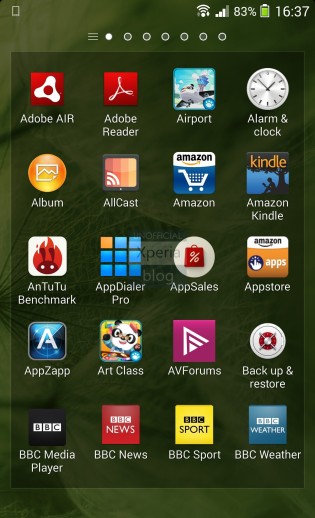

Left – Android 4.3 Jelly Bean; Right – Android 4.4.2 KitKat
Lock screen
The new KitKat lock screen requires a simple swipe to unlock. The ‘blind effect’ animation from Jelly Bean is gone and replaced by sparkles that track the finger as you unlock the handset. You will notice that the transparent status bar is also present in the KitKat lock screen.
The quick launch camera button has moved towards the bottom in KitKat. This requires a swipe up (similar to launching Google Now) which creates an arc to unlock to. Lock screen widgets are also possible, although this option can be removed in the settings.

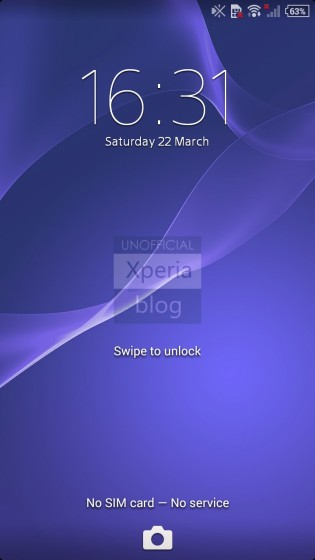
Left – Android 4.3 Jelly Bean; Right – Android 4.4.2 KitKat
Notifications
The notifications menu could require some extra work in our view. First of all, the drop-down menu is now broken down into two parts. When you swipe down you can see all of your notifications, you then have to click across to access the quick settings.
This can be a bit cumbersome and adds an extra step to what was previously a one click process. One way around this is to use a two-finger swipe down to access the quick settings menu directly. However, this won’t help you if you are using your phone one handed.
We also feel that the pure black notification screen goes against some of the transparent design language found in Kitkat. Hopefully, Sony changes this in future updates.
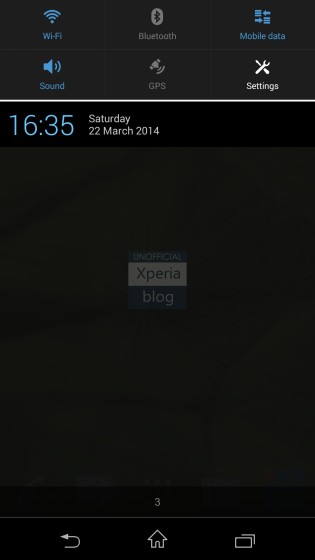
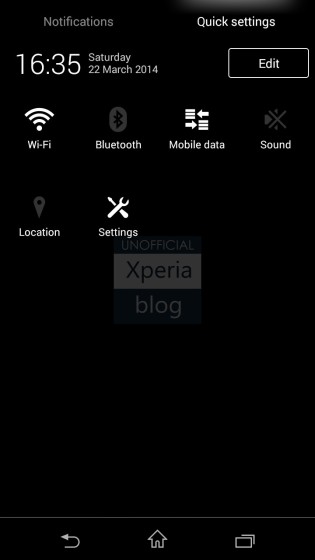
Left – Android 4.3 Jelly Bean; Right – Android 4.4.2 KitKat
Power off
We surely can’t be the only ones that are so excited to see the “Take screenshot” option make a return in the power menu? It is long overdue and makes it much easier to take screenshots, especially since some cases make it very difficult to use the volume down + power button trick.
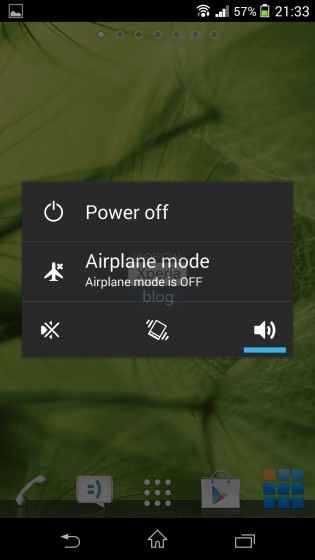

Left – Android 4.3 Jelly Bean; Right – Android 4.4.2 KitKat
Charging indicator
The charging icon moves outside of the battery icon in KitKat, which does make it easier to glean when the device is charging.


Left – Android 4.3 Jelly Bean; Right – Android 4.4.2 KitKat
SONY MEDIA APPS
Sony’s suite of media applications have all been updated in the KitKat firmware build, but some more substantially than others.
Album
The Album app moved its build number marginally from 5.4.A.0.20 to 5.4.A.0.22. We noticed no changes in functionality between versions.
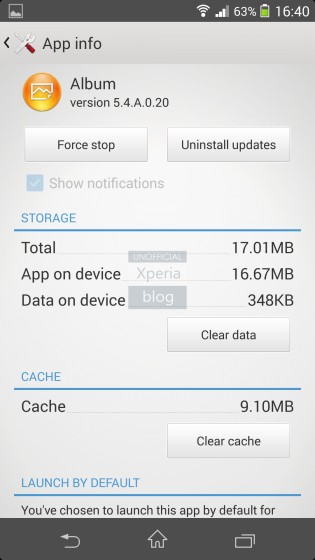
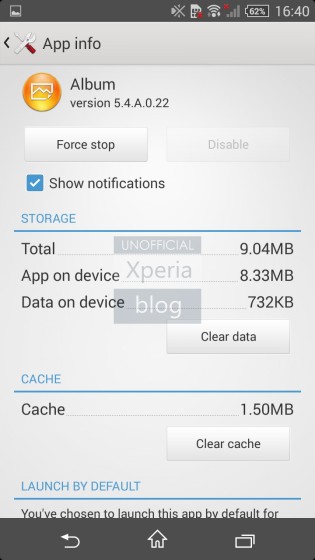
Left – Android 4.3 Jelly Bean; Right – Android 4.4.2 KitKat
Movies app
The Movies app moved its build number more significantly from version 5.3.A.0.20 in Jelly Bean to 6.1.A.0.16 in KitKat. One of the major additions is the Movie Creator functionality that allows you to edit your videos (more on this below).
The front-end of the app shows no difference between versions.
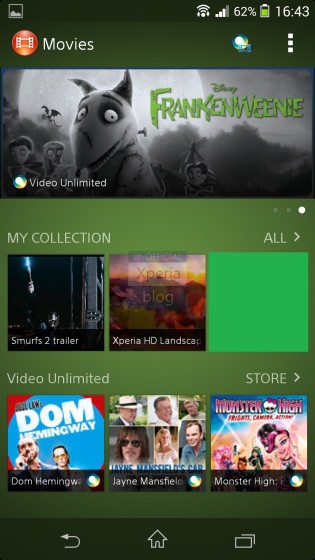
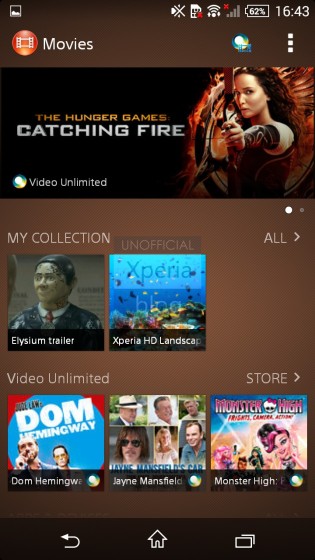
Left – Android 4.3 Jelly Bean; Right – Android 4.4.2 KitKat
The settings menu between both versions are broadly similar. The screenshots below chop off the “Background playback” setting at the top featured in both versions. We did this to show some of the reshuffling that Sony has done with the settings that sit below Background playback.
Sony also changed “Hide recent videos” to “Hide last played video” i.e. moving from multiple videos to one.
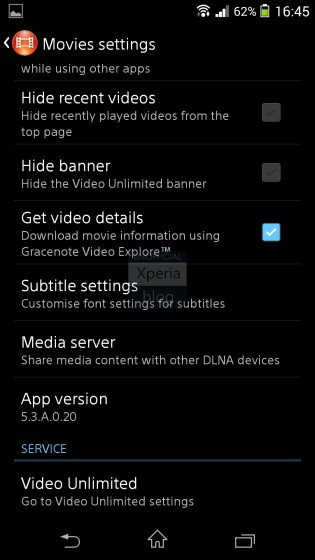
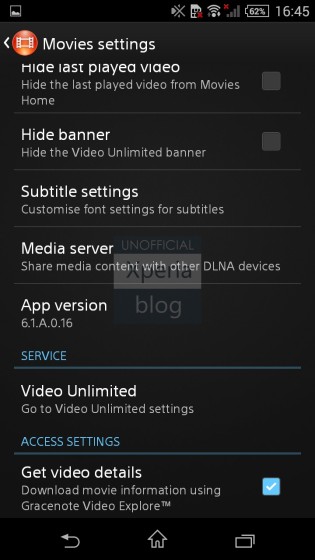
Left – Android 4.3 Jelly Bean; Right – Android 4.4.2 KitKat
The UI for viewing recorded videos has changed in the Kitkat update. The rewind/forward buttons have been removed and you need to use the scrollable indicator to navigate your videos. The full video detail (date, time, video length, video size) information also seems to be removed. We now only see date and time that the video was taken.
In the new update, you will also notice the film board icon in the top right. This will take you to the Movie Creator feature.
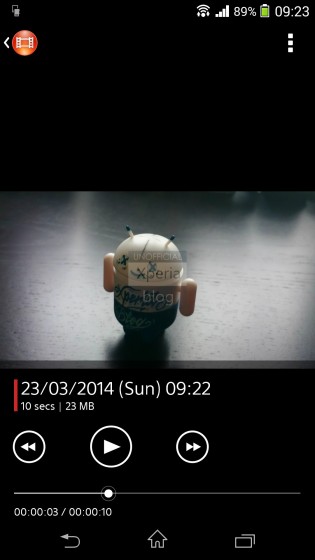
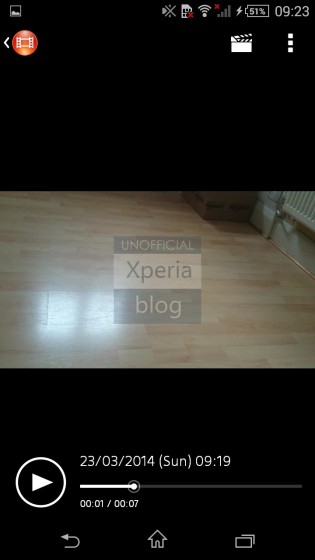
Left – Android 4.3 Jelly Bean; Right – Android 4.4.2 KitKat
The Movie Creator feature puts some simple editing functionality at your fingertips. Once you’re happy with your creation you can save and share it.
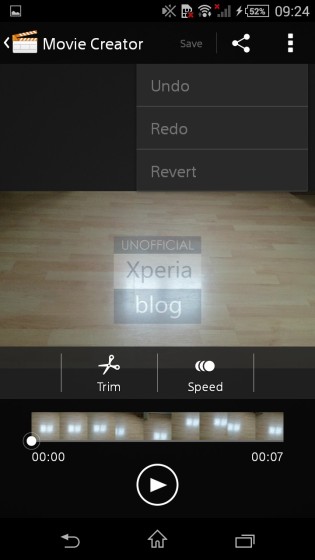
You are able to trim the video to a custom or predefined length. Much like the Timeshift video functionality, you can also select part of your video to run at a slower speed. There are options to run at 1/8, 1/4 and 1/2 the speed.

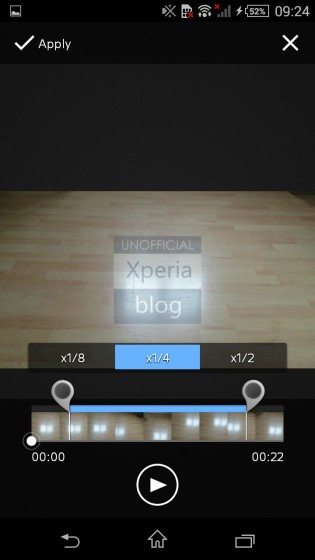
Android 4.4.2 KitKat
WALKMAN
We noticed no significant changes in the WALKMAN app’s front end. The build number has moved from 8.1.A.0.3 to 8.1.A.0.6. One of the changes includes the ability to automatically share songs that are playing to Facebook. There also appears to be a toggle to turn Music Unlimited on/off.
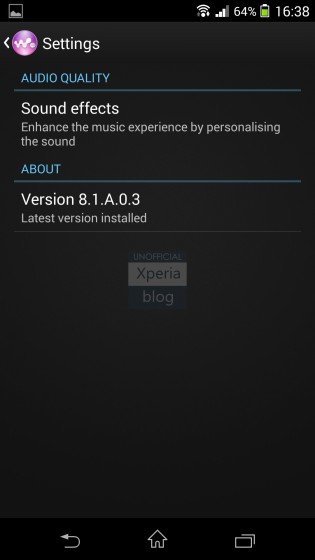
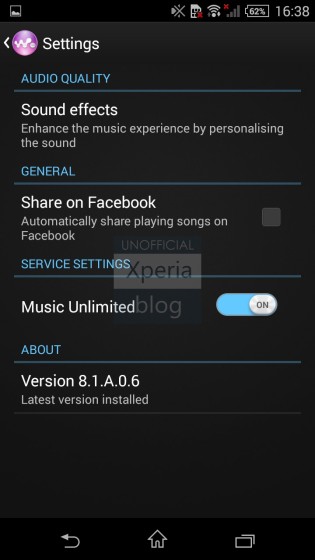
Left – Android 4.3 Jelly Bean; Right – Android 4.4.2 KitKat
Camera
The main difference in the camera UI is the transparent menu item where all of the camera buttons sit. You can see the difference when looking at the Jelly Bean screenshot (top) against the KitKat screenshot below it.

Android 4.3 Jelly Bean

Android 4.4.2 KitKat
Camera – Manual mode
In Manual mode, the main addition in KitKat is the ability to take pictures at 15.5MP in a 16:9 aspect ratio.

Android 4.3 Jelly Bean

Android 4.4.2 KitKat
Camera – Superior auto mode
In Superior auto mode, there is finally an option to take pictures in 16:9 or 4:3 aspect ratio.

Android 4.3 Jelly Bean

Android 4.4.2 KitKat
In the video settings for Superior auto mode, there is also an option to turn the Preview on or off.

Android 4.3 Jelly Bean

Android 4.4.2 KitKat
Camera – Sweep Panorama mode
In Sweep Panorama mode, the settings menu has been split into camera and settings. The former only houses the Preview toggle, whilst the latter includes the same settings found in the Jelly Bean version.

Android 4.3 Jelly Bean

Android 4.4.2 KitKat

Android 4.4.2 KitKat
Camera apps and widget
Viewing new camera apps in Sony Select in the KitKat firmware allows you to see more of the apps at once. Also the opaque background in Jelly Bean makes way for a background that shows you what your camera is seeing.

Android 4.3 Jelly Bean

Android 4.4.2 KitKat
The KitKat transparent element is also used throughout the camera widget. In Jelly Bean, the settings part of the widget is shaded.


Left – Android 4.3 Jelly Bean; Right – Android 4.4.2 KitKat
Camera app – AR effect
KitKat introduces the ability to use the AR effect whilst recording video, previously you could only use the augmented reality to take pictures.

Android 4.3 Jelly Bean

Android 4.4.2 KitKat
Camera app – Creative effect
What was known as the “Picture effect” camera app in Jelly Bean is now called “Creative effect”.

Android 4.3 Jelly Bean

Android 4.4.2 KitKat
When launching the app in KitKat you now see all of the different effects in a ribbon on the right side of the display. This has enabled to add more effects than the nine offered in Jelly Bean.

Android 4.3 Jelly Bean

Android 4.4.2 KitKat
Another big change in the KitKat app is the ability to record video with your filter applied. You will also notice that some of the UI elements have moved around, for example the button to take you back to the different picture effects now sits above the camera button.

Android 4.3 Jelly Bean

Android 4.4.2 KitKat
Much like the Sweep Panorama mode, the settings menu for the Creative effect camera app is now split into camera/video/settings.

Android 4.3 Jelly Bean

Android 4.4.2 KitKat

Android 4.4.2 KitKat

Android 4.4.2 KitKat
Camera app – Info-eye
The Info-eye camera app has moved from build version 1.3.04 to 1.3.07. We didn’t notice any changes in the main app, but the settings menu has removed the option to save search photos.

Android 4.3 Jelly Bean

Android 4.4.2 KitKat
Calendar
The Calendar app has been updated in the move to KitKat firmware. You will notice small layout changes, but a big new addition is a five-day weather forecast. Tapping the weather icon takes you to AccuWeather.com where you can view the extended forecast for the day.
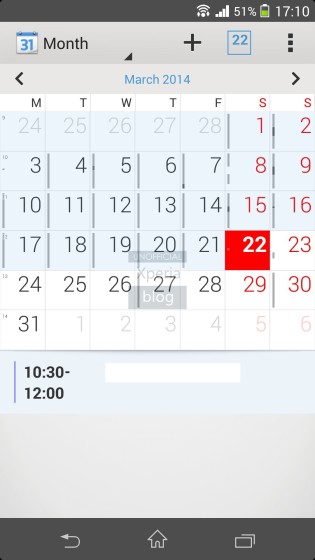

Left – Android 4.3 Jelly Bean; Right – Android 4.4.2 KitKat
The settings drop down menu is largely the same apart from Calendars, which has now moved to the swipe menu on the left side.
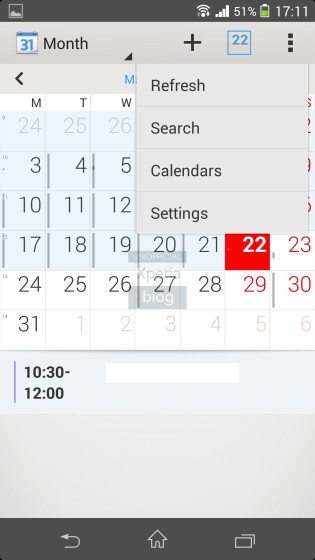
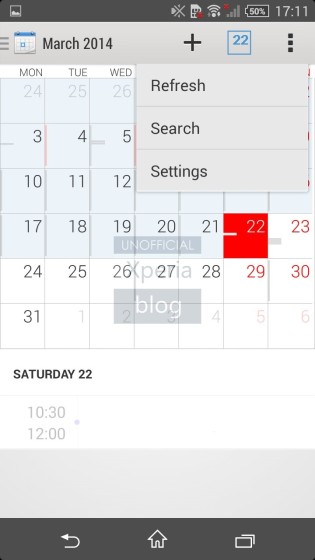
Left – Android 4.3 Jelly Bean; Right – Android 4.4.2 KitKat
Tapping the side menu allows you to change the view by year, month, week and day. You can also choose which calendars to show here.
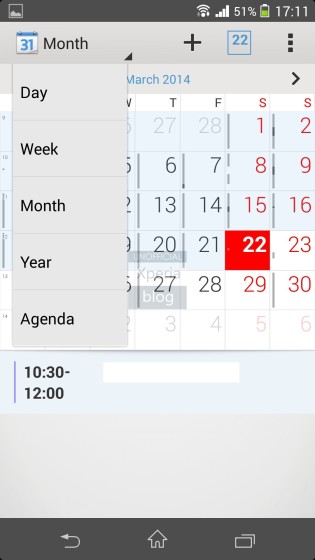
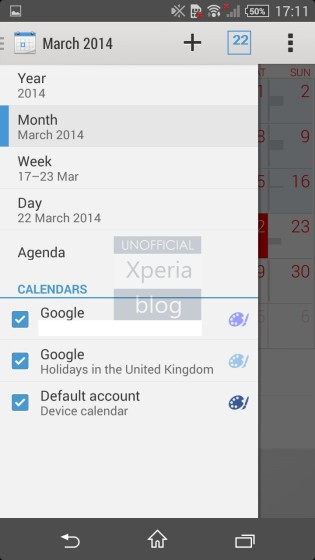
Left – Android 4.3 Jelly Bean; Right – Android 4.4.2 KitKat
The calendar widget in KitKat is the same except for a change in icon on the top right.
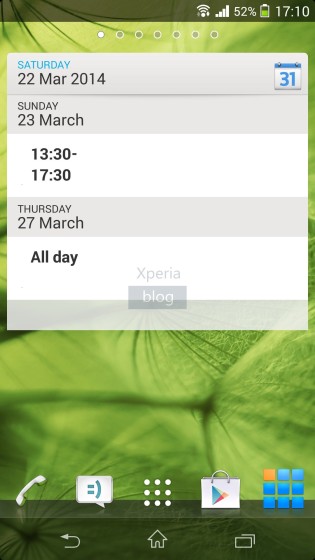
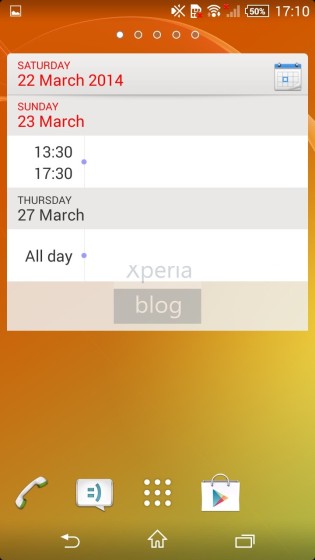
Left – Android 4.3 Jelly Bean; Right – Android 4.4.2 KitKat
Contacts
Xperia KitKat Contacts is the same as Jelly Bean, however one crucial difference is the inclusion of the ICE (In Case of Emergency) setting.
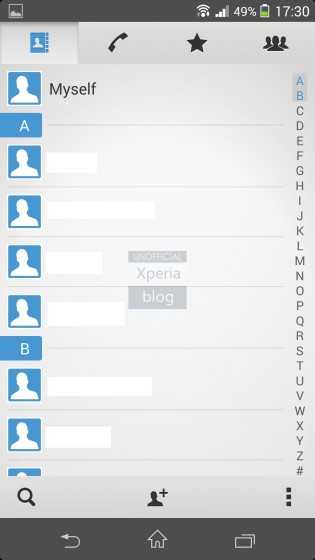

Left – Android 4.3 Jelly Bean; Right – Android 4.4.2 KitKat
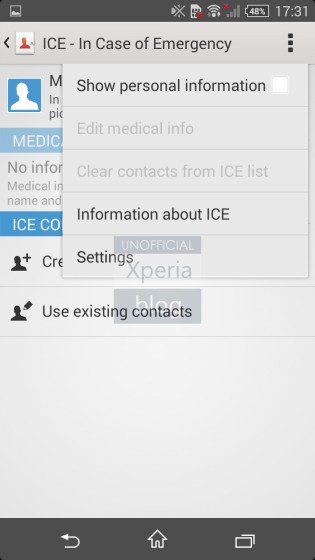
The ICE setting allows you to capture important medical information about yourself as a result of an emergency. You can add any medication you are taking or allergies for example. As well as medical information, you can use the setting to provide emergency contact information in case of an accident.
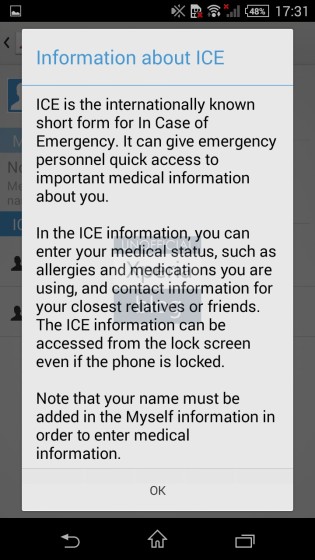
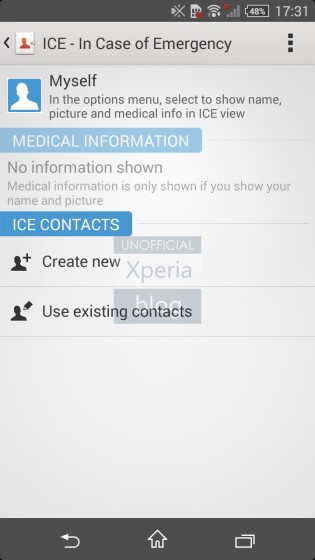
Android 4.4.2 KitKat
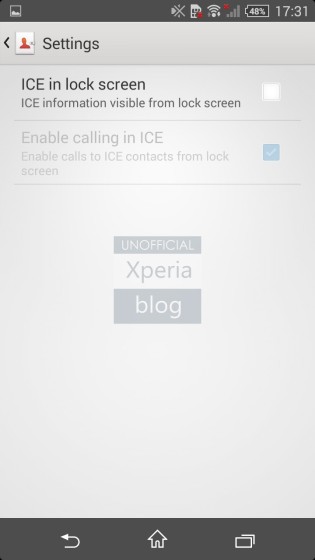
The settings are customisable allowing you to display ICE information in the lock screen and even allowing calls directly from the lock screen.
Android 4.4.2 KitKat
Dialler
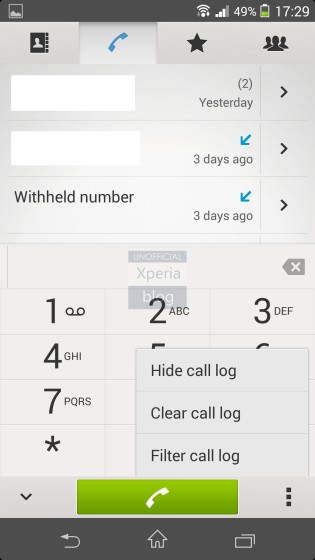
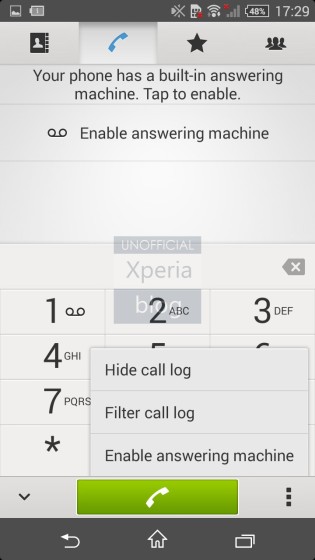
The KitKat dialler is the same as the one found in Jelly Bean, however KitKat introduces the answering machine feature.
Left – Android 4.3 Jelly Bean; Right – Android 4.4.2 KitKat
The interface when making calls is the same, however the Jelly Bean setting on the top right (to access the Equaliser and Slow talk) is removed in KitKat. The KitKat dialler also has an extra icon used to switch calls.
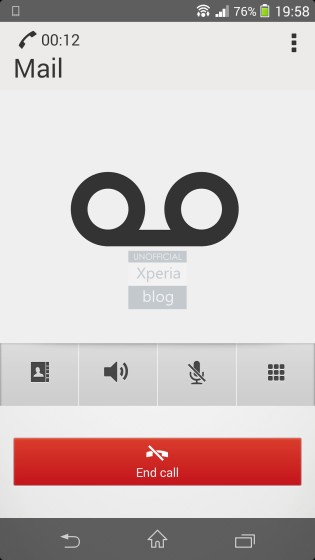
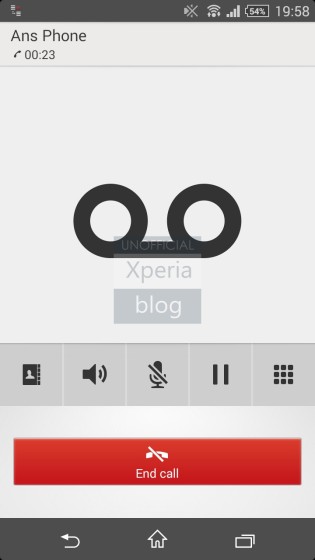
Left – Android 4.3 Jelly Bean; Right – Android 4.4.2 KitKat
Call settings
The only addition in the Call settings menu is the Answering Machine setting.
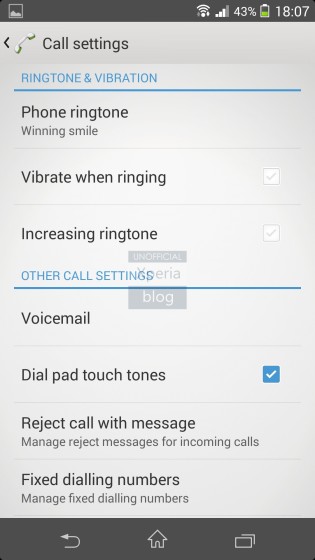
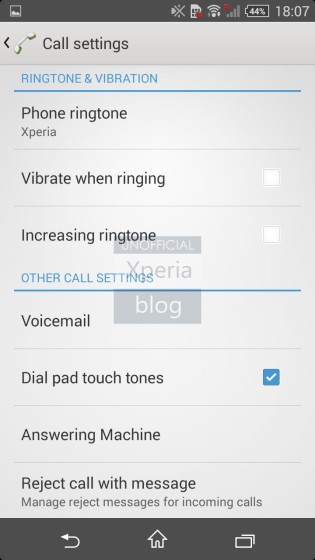
Left – Android 4.3 Jelly Bean; Right – Android 4.4.2 KitKat
As the screen below highlights, the answering machine is a handset specific function and differs from the one that works with your operator. It can only be used when at least one greeting is recorded. The settings allow you to enable the answering machine after a specific time frame.
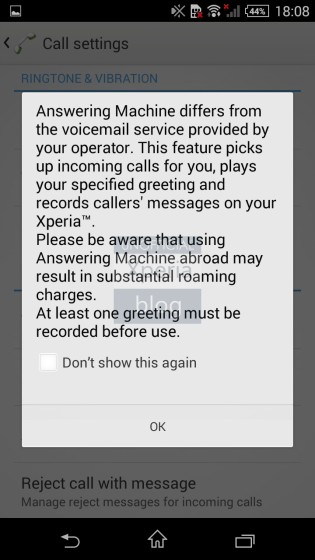
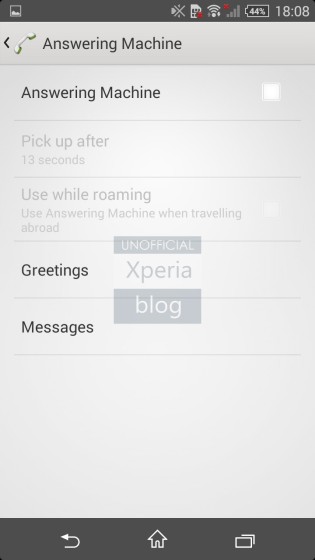
Android 4.4.2 KitKat
Settings
The Settings menu uses the same UI apart from the toggle buttons. These still use the chrome effect switches, but the on/off symbols are replaced with explicit ‘ON’ and ‘OFF’ designations. These new switches are used throughout the settings menu and select Sony apps.
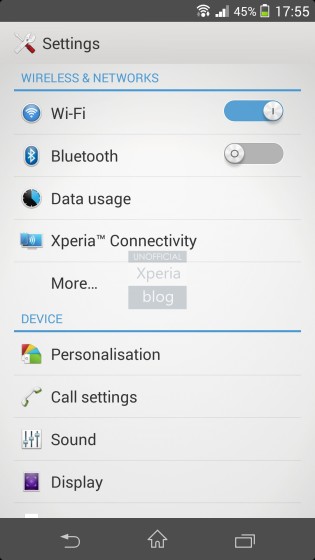
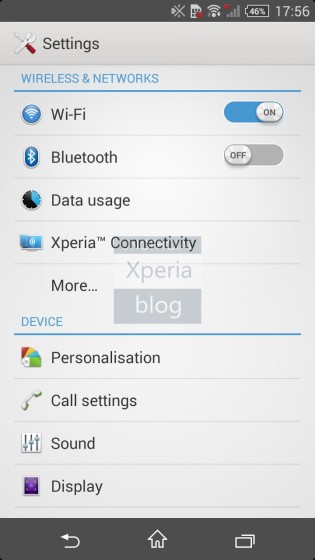
Left – Android 4.3 Jelly Bean; Right – Android 4.4.2 KitKat
Wireless & Networks
The Wireless & networks settings list is in a slightly different order in KitKat versus Jelly Bean.
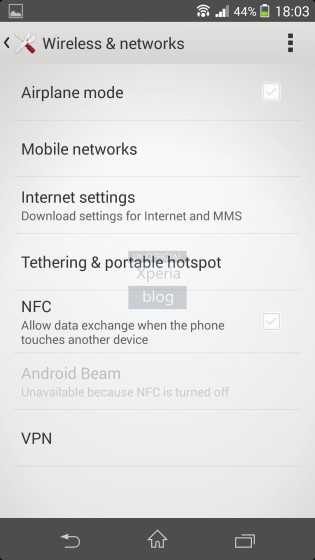

Left – Android 4.3 Jelly Bean; Right – Android 4.4.2 KitKat
The only additional menu item is the ability to change the default SMS app, allowing you to use Google Hangouts instead of the stock Messaging client.

Xperia Connectivity
The Xperia Connectivity menu has one addition in KitKat, which is One-touch setup.


Left – Android 4.3 Jelly Bean; Right – Android 4.4.2 KitKat
One-touch setup
One-touch setup allows two Sony Xperia devices running Android 4.4.2 KitKat and higher to share certain features.

By connecting the devices you can enable certain features such as mirroring your phones display on the tablet, sharing media, sharing the data connection and/or connecting both devices via Bluetooth.
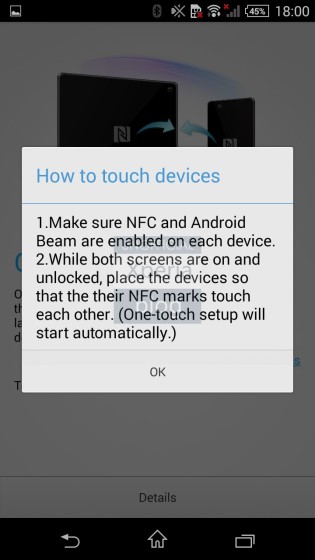
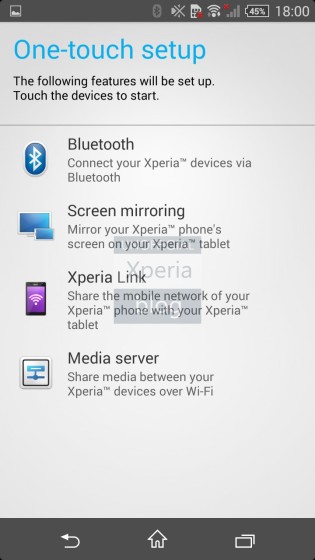
Android 4.4.2 KitKat
Throw
The Throw settings menu in KitKat adds an additional menu item “About Throw”, which explains exactly what ‘Throw’ does.

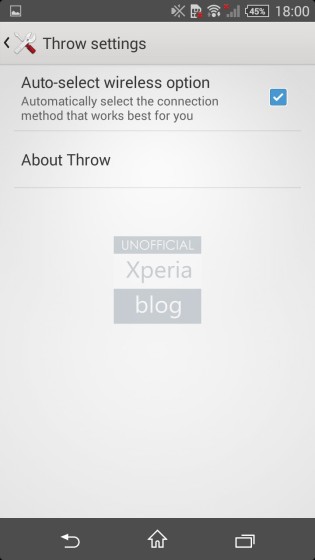
Left – Android 4.3 Jelly Bean; Right – Android 4.4.2 KitKat
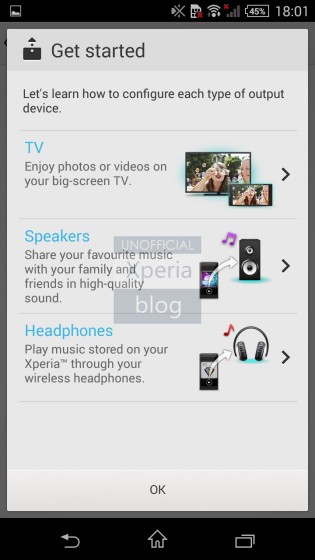
This new Throw setting helps you to wirelessly set up various devices including TV, Speakers and Headphones.

Android 4.4.2 KitKat
The setting highlights the different methods that can be used to connect each device.
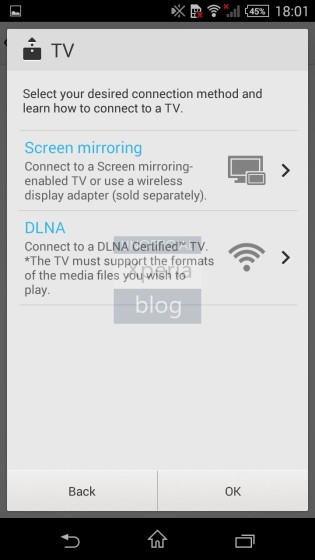
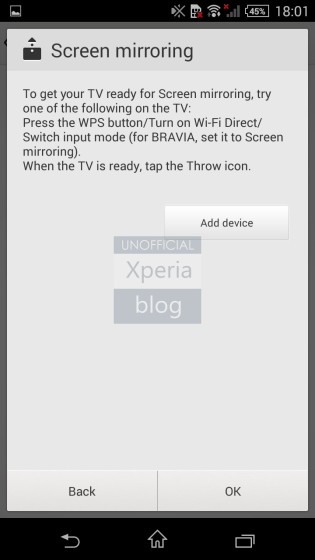
Android 4.4.2 KitKat
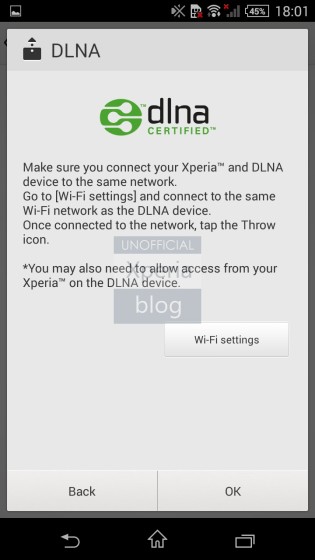

Android 4.4.2 KitKat
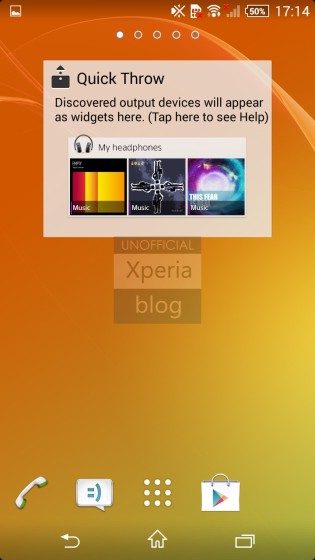
Quick Throw widget
KitKat brings a new Quick Throw widget that will show discovered output devices.
USB Connectivity
The USB Connectivity setting contains a new feature called “Pair with PC”.
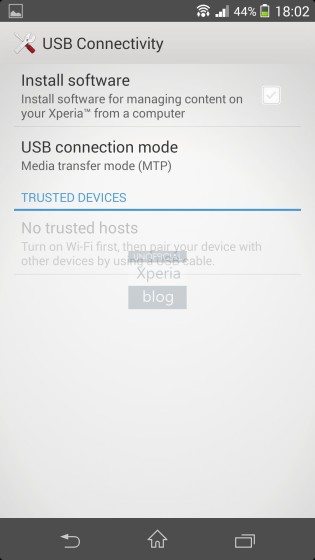

Left – Android 4.3 Jelly Bean; Right – Android 4.4.2 KitKat
This feature allows wireless media transfer between Xperia device and PC.

Personalisation
The Personalisation setting in KitKat has renamed “Theme” to “Xperia themes”. You will also find new settings relating to managing notifications and status bar icons.


Left – Android 4.3 Jelly Bean; Right – Android 4.4.2 KitKat
KitKat firmware brings with it new Xperia Themes.
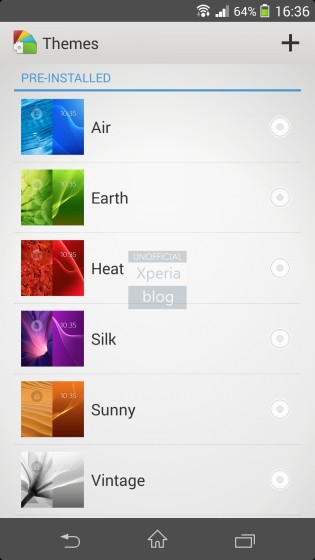

Left – Android 4.3 Jelly Bean; Right – Android 4.4.2 KitKat
The setting allows you to select which apps are allowed to send notifications. It also allows you to choose which system icons should be displayed in the status bar.


Android 4.4.2 KitKat
Power management
The KitKat “Power management” setting is the same as Jelly Bean, however the option to show the battery level percentage is removed. This is not surprising as Sony allows you to choose which status bar icons to include via the Personalisation menu.


Left – Android 4.3 Jelly Bean; Right – Android 4.4.2 KitKat
The STAMINA mode icon from Jelly Bean is no more. Instead, we now have a + symbol next to the battery icon to indicate that STAMINA mode is enabled.


Left – Android 4.3 Jelly Bean; Right – Android 4.4.2 KitKat
Location
Sony has renamed “Location services” to just “Location” in KitKat. The new setting allows you to see recent location requests. There is also a new location mode setting.


Left – Android 4.3 Jelly Bean; Right – Android 4.4.2 KitKat
The location mode setting allows you to choose different accuracy levels including “High accuracy”, “Battery saving” and “Device only”.

Developer Options
ART is a new Android runtime introduced experimentally in the 4.4 release. However, Sony has not included the ART runtime option within the Developer options settings.


Left – Android 4.3 Jelly Bean; Right – Android 4.4.2 KitKat
Security
In the KitKat Security setting, you can enable/disable lock screen widgets.


Left – Android 4.3 Jelly Bean; Right – Android 4.4.2 KitKat
Setup guide
Sony uses its new wallpaper as background for the KitKat Setup guide.


Left – Android 4.3 Jelly Bean; Right – Android 4.4.2 KitKat
Printing
Printing is a new KitKat feature found in the setting menu. You can use it to add your cloud printing services.


Android 4.4.2 KitKat
Accessibility
The Accessibility menu setting adds a new setting called Captions.


Left – Android 4.3 Jelly Bean; Right – Android 4.4.2 KitKat
Clicking Captions allows you to change the text size and caption style.

Keyboard
The Android KitKat keyboard brings with it a whole host of emoji icons.
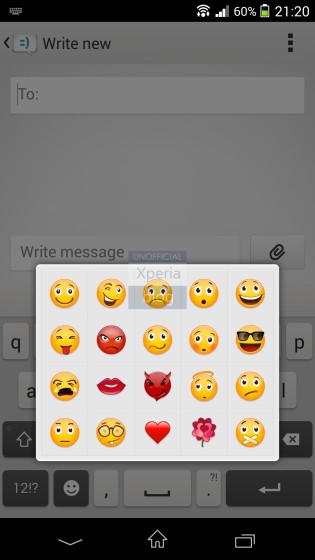
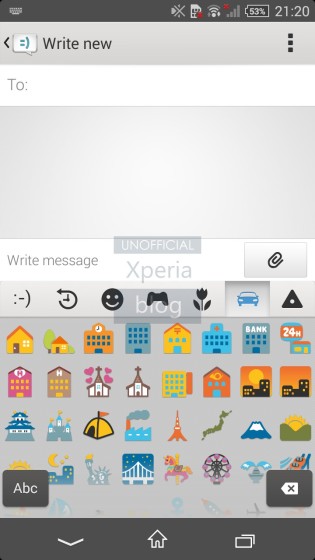
Left – Android 4.3 Jelly Bean; Right – Android 4.4.2 KitKat
Small apps
The Android KitKat firmware update introduces a new Small app called Touch Block. It helps to prevent accidental touches when the display is exposed to water.

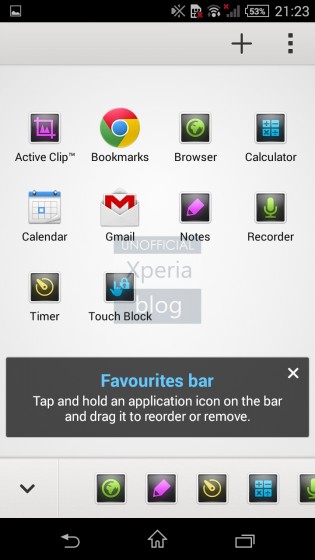
Left – Android 4.3 Jelly Bean; Right – Android 4.4.2 KitKat
Downloads app
The Downloads app has seen a complete UI overhaul in KitKat compared to the Jelly Bean version that can be seen below.

The new KitKat Downloads app has a lighter background. The settings allow you to view downloads by list or grid. You can also sort the downloads by name, date modified and size.


Android 4.4.2 KitKat
TrackID TV
The intro screen for the TrackID TV app uses a different graphic in Android KitKat.


Left – Android 4.3 Jelly Bean; Right – Android 4.4.2 KitKat
The apps functionality is the same, however the setting “Display notifications” has been renamed to “Tracking notifications”.

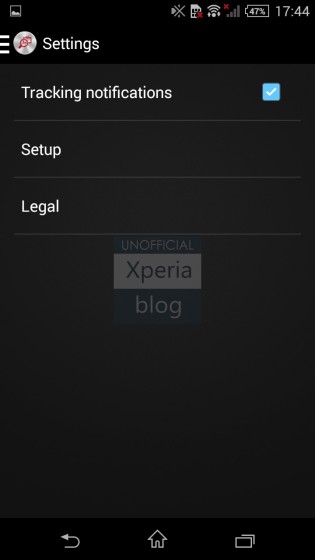
Left – Android 4.3 Jelly Bean; Right – Android 4.4.2 KitKat
Update Centre
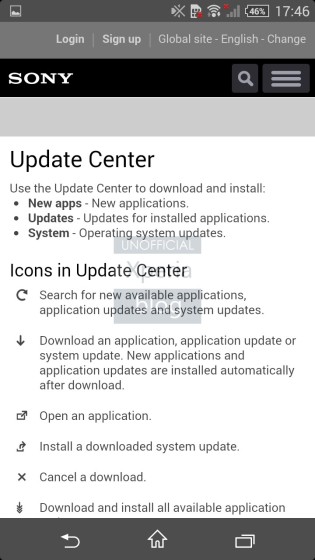
The Update Centre app is no different in KitKat apart from the introduction of a ‘Help’ setting.

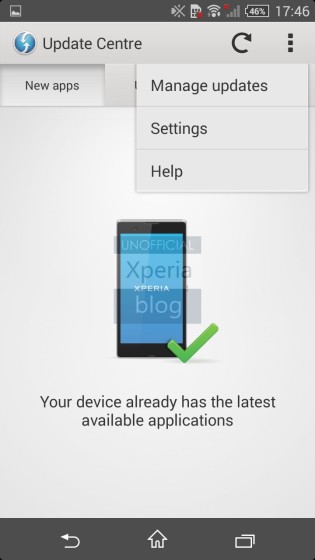
Left – Android 4.3 Jelly Bean; Right – Android 4.4.2 KitKat
Pressing Help brings up a browser page showing what each of the icons mean.
KitKat changes for Xperia Z Ultra only
The Sony Xperia Z Ultra has a couple of its own additions in KitKat detailed below.
Home screen grid
If you find that the icons in the home screen are too small for you, Sony now allows you to change the size of the grid. This means you can have lower rows and columns to make the icons bigger.

Simple Home launcher
Sony has also introduced the Simple Home launcher, in addition to the standard launcher, that makes it easier to view apps or make calls. We find it strange why this is included in Sony’s largest phone as we thought it would be more suited to the smaller display sizes. Perhaps it will arrive in the Xperia Z1 Compact at a later stage.


Issues
Some of the issues that people are reporting in the new KitKat update can be found below. It is worth noting that these issues don’t seem to affect everyone. For example, we have not experienced faster than usual battery drain or overheating.
Sound bug – Some users are also complaining of a sound bug where the sound from calls, notifications, alarms or music is played through the internal speaker, rather than the external speaker. The issue can appear randomly rather than consistently which makes it more frustrating, especially when trying to troubleshoot.
Heating – A common complaint we are hearing on the Xperia Z1, especially, is that the phone overheats when running the camera.
Battery drain – Perhaps related to the above issue, some users are complaining of faster batter drain in KitKat versus Jelly Bean.
Slow camera performance – Some people are finding lag when navigating options in the camera or when trying camera apps.
Memory card restrictions – Google has changed the way it treats SD cards within Android KitKat. Please read our previous article on this which goes into detail in what these changes are and how it may impact on your decision to upgrade to KitKat.
Final words
Overall, once you move past the initial disappointment of not seeing some anticipated software features from the Xperia Z2, such as tap to wake, the Xperia Android 4.4.2 KitKat firmware update (14.3.A.0.681) is a pleasure to use with a smooth performance overall. As you can see across this review, there are a number of changes in the move from Android 4.3 Jelly Bean.
Some of these are significant, such as the transparent elements brought by native KitKat, Movie Creator, additional options in the various camera modes, Calendar, Answering Machine, One-touch setup, Wireless Media Transfer, Printing and the ability to manage notifications.
Overall it is worthwhile update and we would expect some more tweaks in future KitKat updates. Obviously apart from quashing the bugs outlined above, we would hope that the notifications menu will move to a transparent background to keep it consistent with the KitKat UI. There is also a chance of seeing some of the Xperia Z2’s features to appear in the Xperia Z1, Z1 Compact and Z Ultra over time.


